


Resend account: form messages to your inbox
Messages from the form on your website go straight to you, and the account belongs to you.
Added:
What is Resend?
Sending emails from websites and apps, making sure they land in the inbox and not in spam.
- On the market since 2023, a San Francisco company backed by Y Combinator.
- The makers of React Email, a popular tool for building emails.
Why do we choose Resend?
- Free plan: 3,000 emails a month (up to 100 a day). Plenty for a website form.
- Messages from the form go straight to your inbox.
- The account is yours, and we only have access to the sending settings.
Why is Resend free?
- Resend’s founders are developers themselves and believe a generous free plan matters when you are just starting.
- Resend earns money from paid plans for companies that send far more emails (for example 50,000 a month).
- A company website form usually fits in the free limit of 3,000 emails a month, and the free plan does not need a payment card.
Check the source: Resend blog on the free plan, as of October 13, 2026 (opens in a new tab)Check the source: Resend pricing, as of October 13, 2026 (opens in a new tab)
Work with AI
Pick an assistant. It opens with a ready prompt and walks you through this guide step by step.
 ChatGPT (opens a new tab with a ready prompt)
 Claude (opens a new tab with a ready prompt)
 Gemini (copies the prompt and opens a new tab, paste it into the chat)
 Perplexity (opens a new tab with a ready prompt)
Help me follow the guide “Resend account: form messages to your inbox” from PerfoState: https://perfostate.com/guides/resend/ Open this page and read the whole guide. Walk me through it point by point: describe one step, wait until I say it is done, and only then move on. If the guide has several paths, first ask which one fits my situation. Do not guess steps that are not on the page. If you cannot open the page, say so directly. If something does not work or the screen looks different from the guide, check the official Resend help (https://resend.com/docs) and tell me what changed. If I am still stuck, suggest contacting PerfoState: website https://perfostate.com/#contact. Never ask me for passwords. Answer in English, briefly and in plain words.
Names and logos belong to their owners. We are not affiliated with OpenAI, Anthropic, Google or Perplexity.
1Create an account
Go to resend.com/signup (opens in a new tab) and sign up with the form: enter your email and set a password.
- Don’t sign in with Google. A separate account with its own password can be shared with us if needed, without access to your Google mailbox.
- Use a password you don’t use anywhere else.
- Confirm your address by clicking the link in the email from Resend.
2Open the team settings
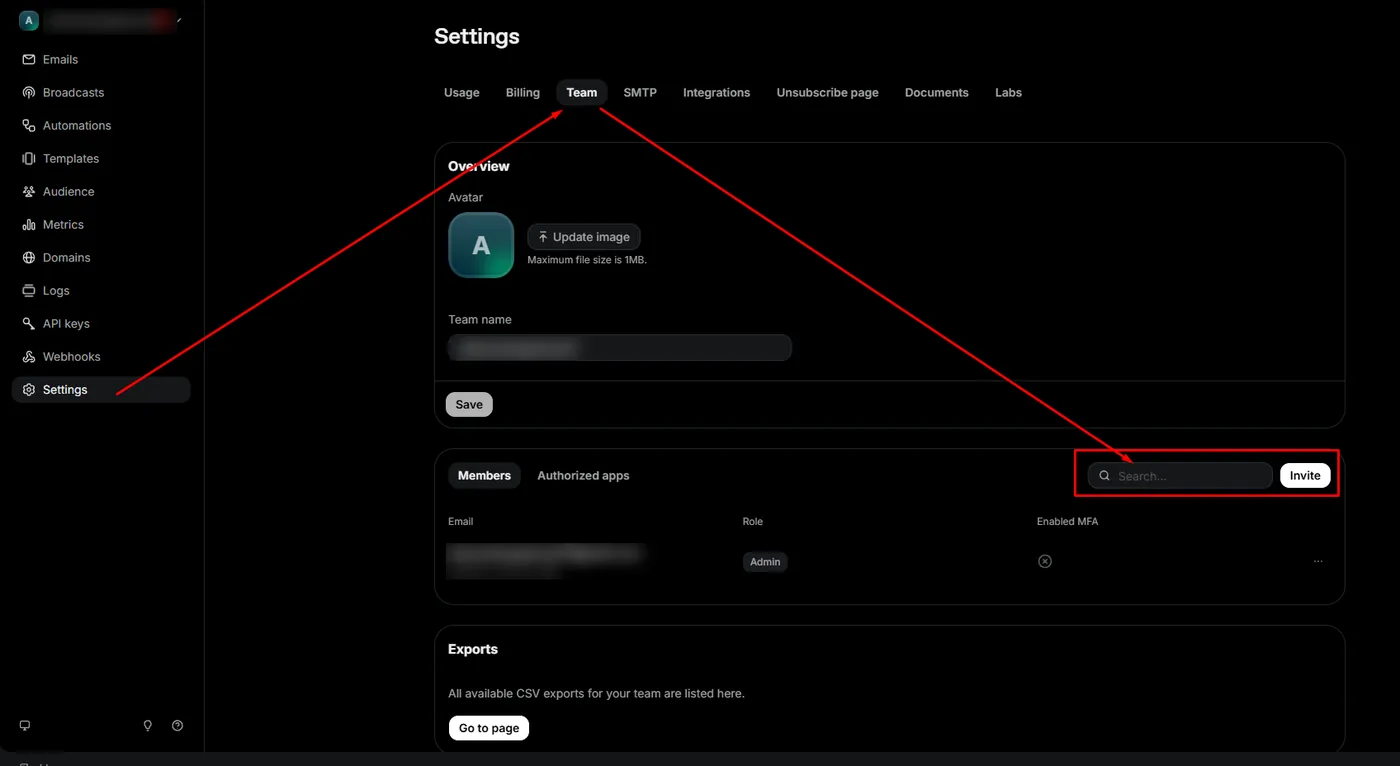
Open the team settings in Resend (opens in a new tab) or choose “Settings” in the menu on the left and the “Team” tab at the top. In the “Members” section, click “Invite”.
3Invite us
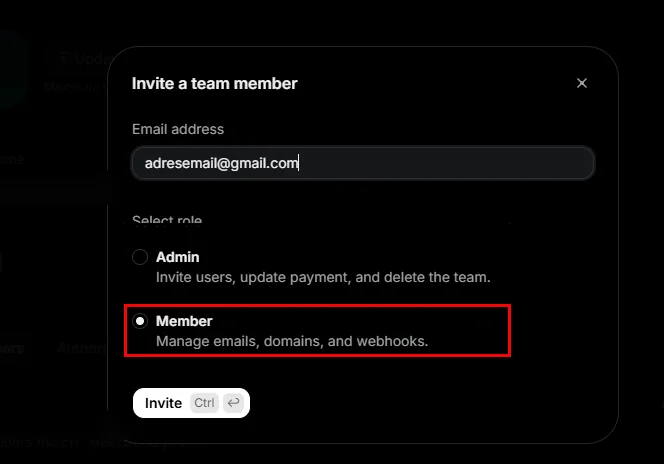
Enter the address aleksander [at] rend.pro, choose the “Member” role and click “Invite”.
- This role is enough to set up sending.
- It gives no access to payments or to deleting your account.
Invitation not working?
Don’t create another account. Email us the address you use to sign in to Resend, and send the password in a separate email, never both in one message. Once sending is set up, change the password and we stop using it.
Has the invitation for us been sent yet?
No rush. Go back to the list of steps or email us: we’ll go through it together.
Done. We will get the invitation and set up form messages to go to your email address.